The WebKit team just shipped a preview version of Safari Technology Preview that has a bult-in MCP server. This is kinda big news for a few reasons. But, before we get to said reasons, let’s take a look at what was shipped.
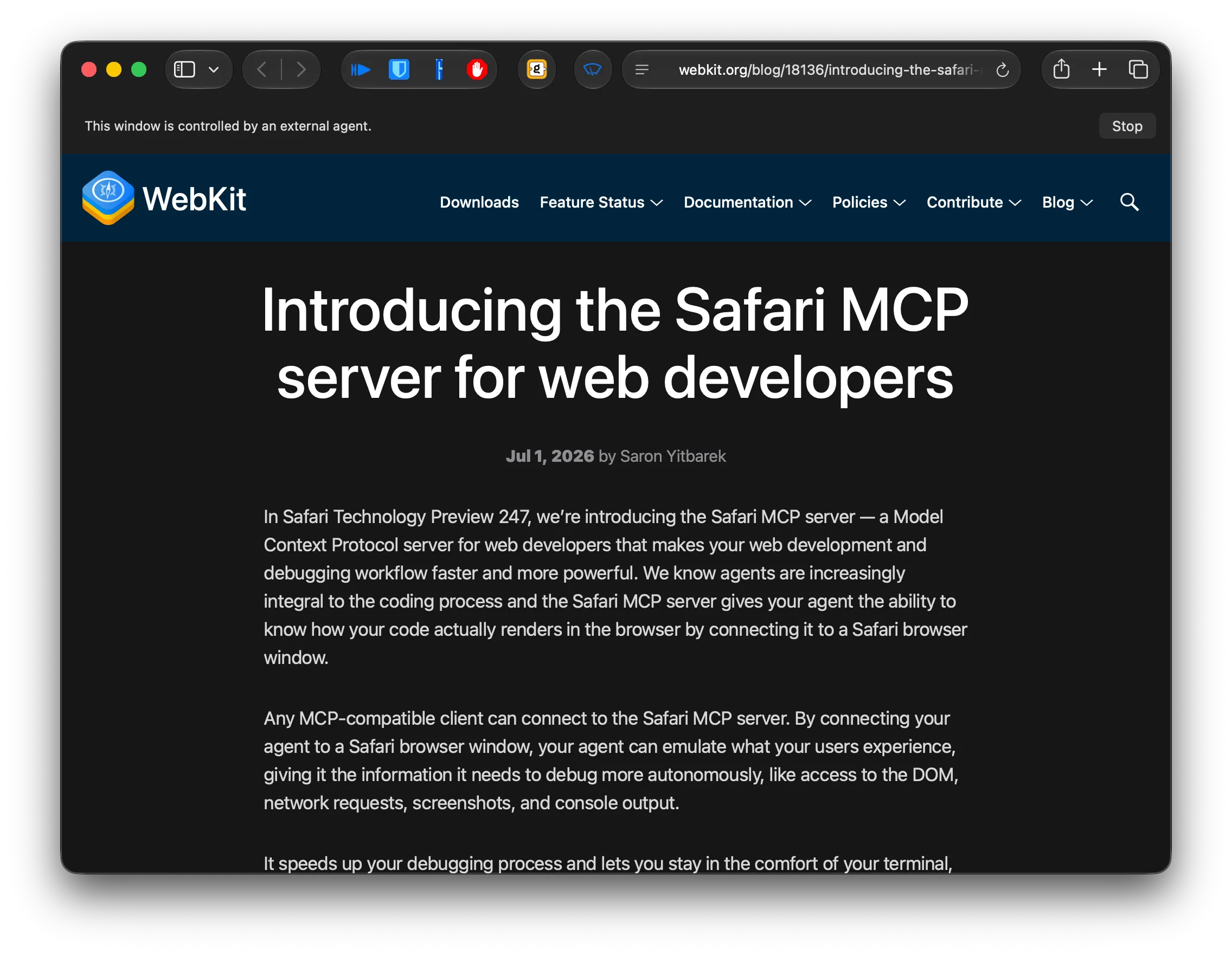
The Safari MCP server connects any MCP-compatible agent directly to a Safari browser window, giving it live access to the DOM, console output, network request details, computed styles, and screenshots — without you having to describe any of it. Embedded deep within the app’s directory tree is the familiar safaridriver tool, which sports a new --mcp flag. Your agent(s) can evaluate JavaScript on the page, check ARIA labeling, inspect network timing, and interact with DOM elements through a set of 17 tools that covers everything you’d do in DevTools.
Getting started requires Safari Technology Preview (STP) — still in Preview 247, so not shipping in stable Safari yet — enabling remote automation in developer settings, and then a single command — claude mcp add safari-mcp-stp -- "/Applications/Safari Technology Preview.app/Contents/MacOS/safaridriver" --mcp for Claude, or the Codex equivalent if that’s your agent of choice. After that, a prompt like “find bugs on my site in Safari” (or, perhaps, a better one) hands the whole investigation off without you having to do the window-switching dance.
Folks who have smartly abandoned Claude Code and the entire Anthropic ecosystem can modify the manual configuation settings accordingly in your agent configs:
"safari-mcp-stp": {
  "enabled": true,
  "type": "local",
  "command": ["/Applications/Safari Technology Preview.app/Contents/MacOS/safaridriver", "--mcp"]
}
NOTE: you likely need to enable Safari’s remote automation if it isn’t already enabled:
- Open Safari Settings (⌘,)
- Go to the Developer tab
- Check “Allow remote automation”
Unlike third-party MCP tools one blindly uses (let’s face it, virtually noone checks the source before blindly adding npx, bunx, or uvx incantations to their agent MCP configs), this new built-in MCP server helps reduce the risk of supply chain compromise and only (potentially) leaks what you’re doing with it to the model provider you’ve chosen. Which means if you’re using a spiffy local model like Ornith, all your work is staying local.
There’s also the benefit of all agentic browsing happening in STP itself. STP’s WebKit is ahead of stock Safari’s WebKit; so, while both are susceptible to any of the massive cadre of new bugs being found by AI tooling, STP is “generally safer” to run than Safari, and when I do need to use a WebKit-based browser for personal use, it’s the only one I use.
Unlike many Chrome/Chromium equivalents, this built-in MCP server has no access to your personal browser profile data — AutoFill, history, that sort of thing. Any page content, console logs, or screenshots it captures go directly to whichever agent you’re running (so the usual “only use agents you trust” advice applies, but Apple isn’t in that data path).
As the official blog post notes, it ships with a bunch of useful tools:
- browser_console_messages — Return buffered console logs for the current or specified tab
- browser_dialogs — List and respond to browser dialogs (accept, dismiss, or input text for JS prompts)
- close_tab — Close a browser tab by its handle
- create_tab — Create a new browser tab, optionally loading a URL
- evaluate_javascript — Execute JavaScript code within the page and return the result
- get_network_request — Get full detail for a single recorded network request (headers, body, timing)
- get_page_content — Extract text content of a page in various formats (markdown, HTML, JSON, etc.)
- list_network_requests — List network request summaries (URL, method, status, timing) for the current tab
- list_tabs — List all open browser tabs with their handles and URLs
- navigate_to_url — Navigate to a URL and return the loaded page’s content
- page_info — Get info about the current page: URL, title, and loading state
- page_interactions — Perform DOM interactions in sequence: click, type, scroll, hover, keyPress, etc.
- screenshot — Capture a screenshot of the current page as a PNG
- set_emulated_media — Emulate a CSS media type (e.g. “print”) for responsive-design testing
- set_viewport_size — Set the browser viewport size in CSS pixels
- switch_tab — Switch to a different browser tab by its handle
- wait_for_navigation — Wait for the current page to finish loading; returns final URL and title
That list was made by me asking OpenCode to hit the blog site and use the evaluate_javascript tool to extract “The Tools” table into a markdown list. Here’s what it came up with to do that:
Let me extract the table as structured JSON using JavaScript. This is a peek at what it did:

**Tool: safari-mcp-stp_evaluate_javascript**

**Input:**
```json
{
  "expression": "(() => { const tables = document.querySelectorAll('table'); const toolsTable = tables[0]; if (!toolsTable) return '[]'; const rows = toolsTable.querySelectorAll('tbody tr'); return JSON.stringify(Array.from(rows).map(row => { const cells = row.querySelectorAll('td'); return { tool: cells[0]?.textContent?.trim() || '', description: cells[1]?.textContent?.trim() || '' }; }), null, 2); })()"
}
```

**Output:**
```
"[\n  {\n    \"tool\": \"browser_console_messages\",\n    \"description\": \"Return buffered console logs for the current or specified tab\"\n  },\n  {\n    \"tool\": \"browser_dialogs\",\n    \"description\": \"List and respond to browser dialogs (accept, dismiss, or input text for JS prompts)\"\n  },\n  {\n    \"tool\": \"close_tab\",\n    \"description\": \"Close a browser tab by its handle\"\n  },\n  {\n    \"tool\": \"create_tab\",\n    \"description\": \"Create a new browser tab, optionally loading a URL\"\n  },\n  {\n    \"tool\": \"evaluate_javascript\",\n    \"description\": \"Execute JavaScript code within the page and return the result\"\n  },\n  {\n    \"tool\": \"get_network_request\",\n    \"description\": \"Get full detail for a single recorded network request (headers, body, timing)\"\n  },\n  {\n    \"tool\": \"get_page_content\",\n    \"description\": \"Extract text content of a page in various formats (markdown, HTML, JSON, etc.)\"\n  },\n  {\n    \"tool\": \"list_network_requests\",\n    \"description\": \"List network request summaries (URL, method, status, timing) for the current tab\"\n  },\n  {\n    \"tool\": \"list_tabs\",\n    \"description\": \"List all open browser tabs with their handles and URLs\"\n  },\n  {\n    \"tool\": \"navigate_to_url\",\n    \"description\": \"Navigate to a URL and return the loaded page’s content\"\n  },\n  {\n    \"tool\": \"page_info\",\n    \"description\": \"Get info about the current page: URL, title, and loading state\"\n  },\n  {\n    \"tool\": \"page_interactions\",\n    \"description\": \"Perform DOM interactions in sequence: click, type, scroll, hover, keyPress, etc.\"\n  },\n  {\n    \"tool\": \"screenshot\",\n    \"description\": \"Capture a screenshot of the current page as a PNG\"\n  },\n  {\n    \"tool\": \"set_emulated_media\",\n    \"description\": \"Emulate a CSS media type (e.g. “print”) for responsive-design testing\"\n  },\n  {\n    \"tool\": \"set_viewport_size\",\n    \"description\": \"Set the browser viewport size in CSS pixels\"\n  },\n  {\n    \"tool\": \"switch_tab\",\n    \"description\": \"Switch to a different browser tab by its handle\"\n  },\n  {\n    \"tool\": \"wait_for_navigation\",\n    \"description\": \"Wait for the current page to finish loading; returns final URL and title\"\n  }\n]"
```
I also decided to put it through some basic paces. These are the six tests I came up with and tried:
- Navigate to
ai.rud.is, extract page content in markdown, get page info, take a screenshot. (it did fine) - Navigate to a specific post, list all network requests, pull full detail on the three largest and any font requests. (it did fine)
- On the same post, evaluate
document.fonts.sizeand the computedfont-familyof thebodyelement. (it did fine) - Open two tabs on`: one at desktop viewport (1440x900), one at mobile (375x667). Screenshot both. NOTE: Safari cannot do this since individual tabs can’t have different viewports, but I wanted to see how the MCP and agent reacted, and there were no obsequious hallucinations. It ended up resizing the browser for each tab’s screenshot.
- Navigate to the Bulletproof Hosting Watch post (it has scads of data tables and other structured content), use
evaluate_javascriptto audit accessibility properties. There is no dedicated accessibility audit tool in the MCP (the WebKit blog post sure makes it seem like there is one tho). The agent ended up usingevaluate_javascriptto check alt texts, heading structure, ARIA attributes, lang, viewport meta, and color properties across every image, link, button, and heading on the page. It’s a decent-but-basic workaround, and you should use something like this if you’re serious about having agents eval a site for accessibility. - Navigate to a URL on that site that returns 404, then one that triggers a redirect. (again, it did fine)
The tools cover scads of use-cases, and do a fine job. I will 100% be reaching for this new MCP server for getting the contents of web pages and doing more advanced data spelunking in DOMs. It should also come in handy when whipping up small apps.